
You downloaded a new theme from trusted website and want to install it on your WordPress site using the Wordpress Admin area. If that"s the case, follow this tutorial.
1. Login to your WordPress admin dashboard.
2. Under the dashboard menu, hover over "Appearance" and click on "Themes".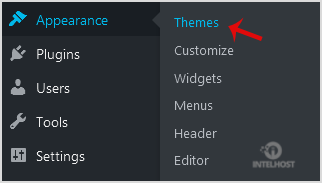
3. Click on "Upload Themes".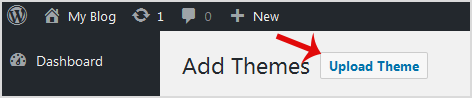
4. Click on Browse and chose a theme, which is compressed in a ZIP file, from your PC/Laptop. If your ZIP file contains a folder like "upload", first extract the content of uploaded files and the compressed theme file. Click on "Install Now".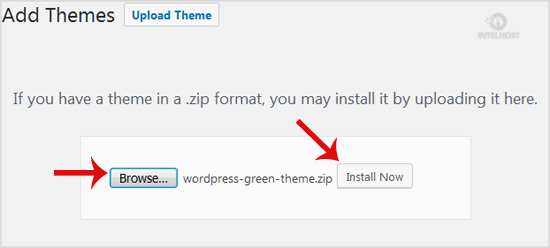
5. It will take a few minutes to upload a theme, and then, if it is successfully installed, it will show a message like "Theme installed successfully". Now click on "Activate".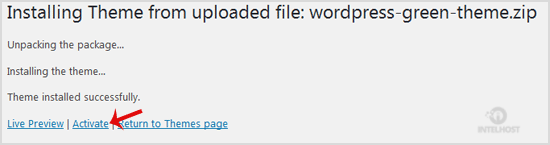
Congratulations, you manually installed and activated a new WordPress theme.
Categories
4
Backup Restore
1 Central del Cliente
28 cPanel Video Tutoriales
11 Databases
9 DNS Nameserver
10 Domain Management
20 Email
9 FTP
13 htaccess cPanel
6 Instalación Panel de Control
8 Mail Filters & SPAM
11 Móvil
25 Panel cPanel
24 Plesk Tutorials
3 Programación
1 Reseller Hosting
10 Seguridad
59 SiteWorx (Control Panel)
79 Softaculous
19 SolusVM
5 SSL
2 VPS Hosting
23 WHM Video Tutoriales
18 Wordpress Hosting
Categories
Tag Cloud
- 0 Users Found This Useful
Related Articles
Cómo acceder a la cuenta de adm de Wordpress?
WordPress is a CMS software with an easy to access admin account and a simple to manage blog...
Cómo eliminar comentarios de muestra, post en un nuevo blog de WordPress?
If you installed a fresh WordPress blog system on your website ,before writing new posts, you...
Cómo empezar a escribir tu primera post de blog en WordPress?
1. Login to your WordPress admin dashboard.2. Under the dashboard menu, hover your mouse on Posts...
Cómo eliminar tu publicación en Wordpress?
You can remove your published or draft post in Wordpress.1. Login to your WordPress admin...
Cómo eliminar varias publicaciones con un solo clic en WordPress?
It is possible to remove multiple post in your WordPress dashboard. You can also remove selected...
Powered by WHMCompleteSolution

Loading...
Loading...