
You can access your FTP Account using the FileZilla FTP Client or any FTP Client.
1. Open the FileZilla FTP Client.
2. Enter your FTP Host, Username and Password. You can use your cPanel username and password as your FTP User and Password.
In the Host field, you can use your domain name such as ftp.example.com or example.com 
3. Click on €œQuick Connect€ and it will take a few seconds to connect. Then your website will appear on the right side.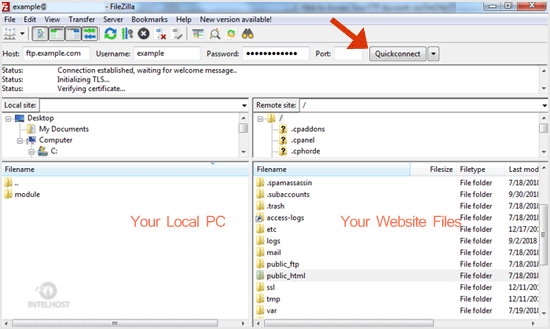
Now you can start using the FileZilla Client, manage your website files, and upload/delete files from your website.
Categories
4
Backup Restore
1 Central del Cliente
28 cPanel Video Tutoriales
11 Databases
9 DNS Nameserver
10 Domain Management
20 Email
9 FTP
13 htaccess cPanel
6 Instalación Panel de Control
8 Mail Filters & SPAM
11 Móvil
25 Panel cPanel
24 Plesk Tutorials
3 Programación
1 Reseller Hosting
10 Seguridad
59 SiteWorx (Control Panel)
79 Softaculous
19 SolusVM
5 SSL
2 VPS Hosting
23 WHM Video Tutoriales
18 Wordpress Hosting
Categories
Tag Cloud
- 0 Users Found This Useful
Related Articles
Cómo instalar el cliente FTP Filezilla en Windows?
Installing the FileZilla FTP Client on Windows OS is easy. Just follow this tutorial. 1....
Cómo crear o eliminar un directorio usando el cliente FileZilla FTP?
You can create or remove directory on your website using the FileZilla FTP Client.1. Open the...
Cómo subir un archivo de índice a su sitio usando FileZilla?
Maybe you are web designer or you have a index file and want to upload it to your site. You can...
Cómo descargar archivos y carpetas a su computadora usando FileZilla?
You can download files from your website to your Computer using FileZilla Client.1. Open...
Powered by WHMCompleteSolution

Loading...
Loading...